CI/CD Part 1: Continuous Integration



Spending time on menial, repetitive tasks can feel demotivating and aimless, like our work isn't contributing to something meaningful. And time spent on these kinds of tasks is also time away from delivering business or customer value. It not only feels bad, it's bad for Norton!
We often call this concept toil, which is something to be eliminated (spoiler: some toil is good!). One of the key ways to eliminate toil is through automation. But automation means many things, so today we're going to talk about a specific type of automation called continuous integration and continuous delivery (CI/CD for short).
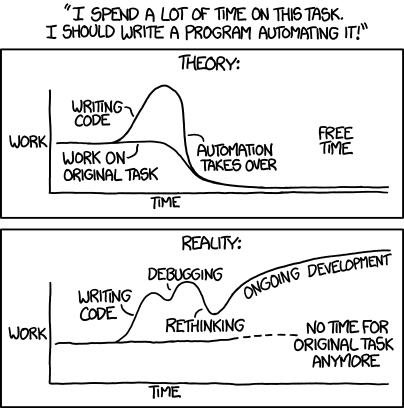
A quick word of warning before we get started: like any designed abstraction, taking time to automate something isn't always guaranteed to be worth it.
Transcript
Okay, now that we have that caveat out of the way, let's dig into the first part: continuous integration.
Continuous Integration
Continuous Integration (CI) is a software development practice where members of a team integrate their work frequently, usually each person integrates at least daily - leading to multiple integrations per day. Each integration is verified by an automated build (including test) to detect integration errors as quickly as possible.
https://martinfowler.com/articles/continuousIntegration.html
The practice of continuous integration has been around a long time. In fact, most of our teams already practice some form of continuous integration by regularly merging (or "integrating") their code. But today we're going to focus on the second half of CI—the automated build and tests that we run to find errors as quickly as possible.
Setup
To help illustrate the concept, let's tell the story of Alex, a developer who's been tasked with building a new feature into Fancy App, the team's hot new web application. At a very high level, this story begins with "I checked in my code" and ends with "we feel confident that this change is ready for production." CI/CD is everything that happens in between, and the subject of our story today.
The first order of business before Alex can make these changes is to create a "working copy" of the application where they will make the necessary changes.
# create a local copy and a new branch, which is where Alex will do their work
git clone git@gitlab.com:wwnorton/app/demo/fancy-app.git
git switch --create new-feature
After making the necessary updates, Alex notices that there are some new changes to the main branch (the team's been busy!) and chooses to incorporate them into their working copy.
While optional, this step is a form of integration, and when done regularly, we might even call it continuous. 😉
# get changes and merge them into the new-feature branch (this is completely optional)
git fetch
git merge main
Once all updates have been accounted for, Alex can push the new code to GitLab to share it with teammates.
git push
This is where continuous integration checks begin. We call this a pipeline, which represents a workflow where we pipe the output of each step to the subsequent step (or "stage").
The pipeline
Because Alex and team have defined a pipeline for this repository, pushing new code immediately triggers the pipeline.
If you'd like to review it, here's the .gitlab-ci.yml file they wrote to define their pipeline.
Otherwise, read on to continue our story.
Complete pipeline
Stage 1: quality
As soon as Alex's new code lands on GitLab, it's picked up by the runner—a special server that monitors projects for changes and runs whatever the .gitlab-ci.yml file tells it to run.
The runner starts the first two jobs it notices under the "quality" stage since that's the first stage declared under stages.
These two jobs run at the same time since they're part of the same stage, each of them taking under a minute to run.
# 1. Check the JavaScript against our JavaScript style guide
eslint:
  stage: quality
  image: node:lts
  before_script:
    - npm ci
  script:
    - npx eslint .

# 1. Check the CSS against our CSS style guide
stylelint:
  stage: quality
  image: node:lts
  before_script:
    - npm ci
  script:
    - npx stylelint "**/*.{css,sass,scss}"
Alex knew these jobs were going to run, so they pass without issue. But since failure is always more instructive than success, let's take a quick detour to see what would happen if either job didn't pass.
Stage 2: build
Back to the successful pipeline! Since the quality checks all passed, the runner begins the next stage, "build," which builds our application into an image.
variables:
  TEST_IMAGE: $CI_REGISTRY_IMAGE/test:$CI_COMMIT_SHORT_SHA # fancy-app/test:a0f123

# 2. If everything in stage 1 passed, build the application into an image and push it to the registry
build:
  stage: build
  image: docker:20.10
  script:
    - docker build . --tag $TEST_IMAGE
    - docker push $TEST_IMAGE
As we can see under the script section, this job does two things:
- Build the application into an image, tagging it with the tag we declared earlier (
TEST_IMAGE). - Push that new image to our container registry.
If you're thinking, "images, tags, container registry...what are these things?!" then let's take one last detour.
Stage 3: test
Back to the pipeline again. Now that we have a successfully-built image, we can test it. The team's decided to run two types of tests: their own built-in tests (these could be unit tests or acceptance tests), and a security scan.
# 3. If everything in stage 2 passed, run the tests inside the image
test:
  stage: test
  image: $TEST_IMAGE
  script:
    - npm test

# 3. Run GitLab's container scanning job, which checks the image for security vulnerabilities
container_scanning:
  stage: test
  variables:
    CS_IMAGE: $TEST_IMAGE
Why yes, observant reader, we could run even more jobs under the tests stage by declaring additional jobs! In fact, we can run anything we want at any stage, and we can even define additional stages if we like. The only technical requirement for a continuous integration pipeline is that it must end with a built image since that's the input for continuous delivery. The purpose of jobs is to increase our confidence that the resulting build will work in production, so any jobs that contribute to that are useful.
Stage 4: publish
But we're getting ahead of ourselves.
Now that our image has been built and we've run it through our tests, we can just move on to continuous delivery, right?
Well...technically, yes.
But the image we were testing could have been a bad image, so we gave it a /test prefix to distinguish it from "canonical" builds (the builds that represent a tested source of truth).
Our final step is to re-tag it and publish the shiny new canonical build.
We'll also give it the :latest tag so fancy-app:latest always reflects the latest build.
publish:
  stage: deploy
  image: docker:20.10
  variables:
    IMAGE_SHA: $CI_REGISTRY_IMAGE:$CI_COMMIT_SHORT_SHA # fancy-app:a0f123
    IMAGE_LATEST: $CI_REGISTRY_IMAGE:latest            # fancy-app:latest
  before_script:
    - docker pull $TEST_IMAGE
  script:
    - docker tag $TEST_IMAGE $IMAGE_SHA
    - docker push $IMAGE_SHA
    - docker tag $TEST_IMAGE $IMAGE_LATEST
    - docker push $IMAGE_LATEST
Conclusion
That's it for the continuous integration pipeline, but what has Alex been doing this whole time?
While the pipeline was running, Alex went to GitLab to open a merge request, which is where Alex communicates with the team about the changes. Alex sets two colleagues as reviewers, which helps communicate more clearly that it's ready for review.
Pam knew that Alex had a new merge request coming because it came up on their standup that morning. She gets a notification when Alex tags her as a reviewer, and goes to the merge request to begin her review. The pipeline is still running, so she waits for it to finish before reviewing.
Once the pipeline passes, she does a quick review of the code and decides that it all looks good. She presses the "Approve" button, which unlocks the "Merge" button for Alex, meaning it's ready to move forward. 🚀🚢
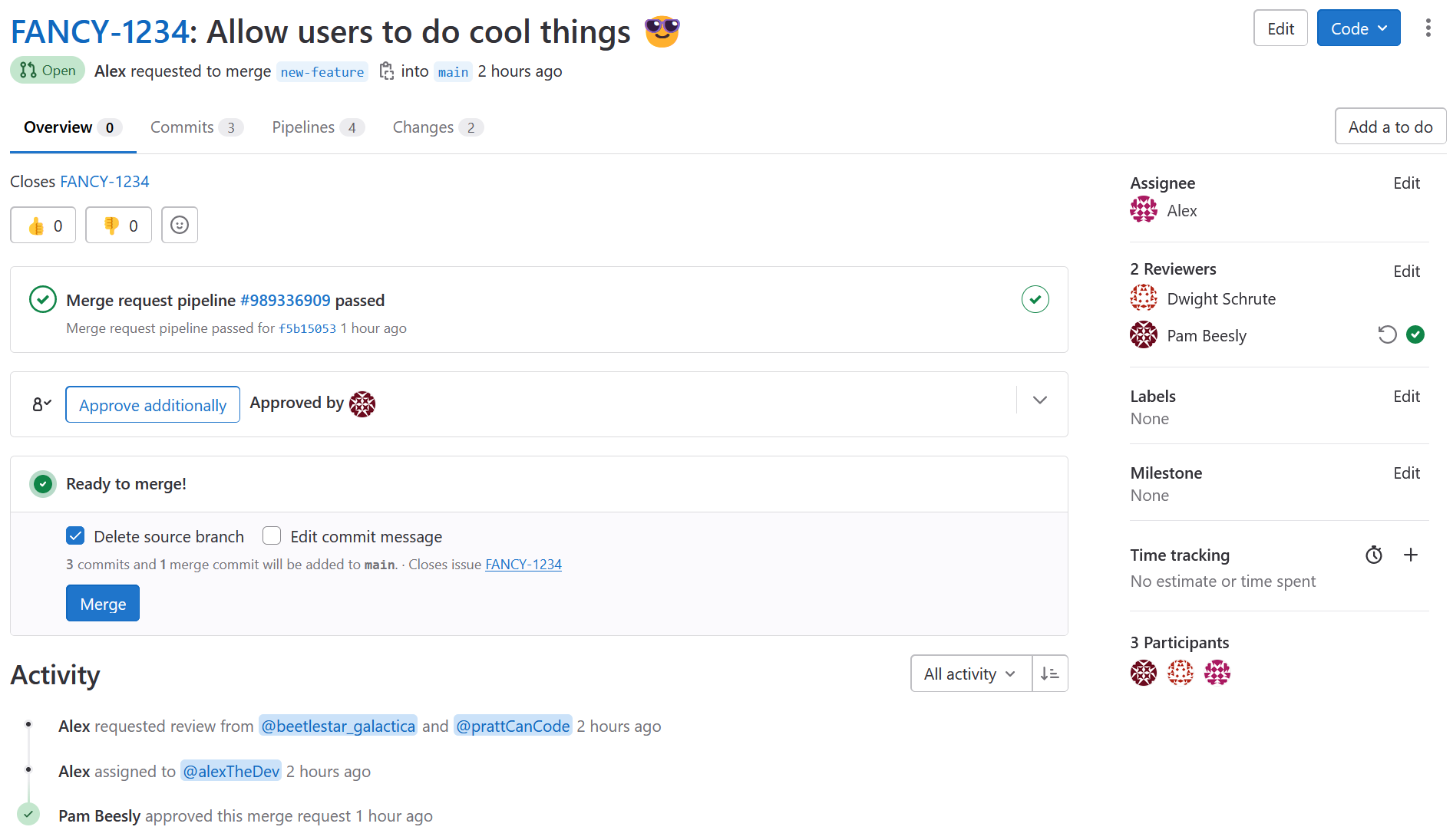
All that remains is for Alex to merge the code by clicking that "Merge" button, which will trigger the next phase of the pipeline: continuous delivery. But we'll save that part of the story for another time!