How-To: Using the Fork Pipeline to Duplicate Applications
Introduction
This guide provides step-by-step instructions for using the Fork Pipeline to duplicate W.W. Norton applications. The pipeline automates the process of forking code repositories, deploy repositories, AWS secrets, and cluster-manager configurations—tasks that would otherwise require manual coordination across multiple systems.
The Fork Pipeline is designed for scenarios where you need an independent copy of an existing application, such as:
- Creating isolated environments for Commerce Unification testing
- Setting up proof-of-concept deployments
- Duplicating applications for parallel development streams
What This Pipeline Does: The Fork Pipeline creates a complete, deployable copy of an application including its code repository, deploy repository, AWS secrets, IAM permissions, and FluxCD configuration. It generates three merge requests that, when merged in order, result in a fully functioning application deployment.
Prerequisites
Before running the pipeline, ensure you have:
- GitLab Access: Permissions to run pipelines in the Fork-Automation repository and create merge requests in the destination group
- Source Application Knowledge: The full GitLab path of the application you want to fork (e.g.,
wwnorton/app/ec/order-service) - Destination Group: An existing GitLab group where the forked repositories will be created (e.g.,
wwnorton/lab/commerce-unification) - Namespace Selection: Know which Kubernetes namespace your forked application will run in (e.g.,
labs,nas,ncia) - Basic Understanding: Familiarity with GitLab pipelines, Kubernetes namespaces, and the general deployment flow at W.W. Norton
Important: The pipeline requires the source application to have both a code repository and a deploy repository following the -deploy naming convention (e.g., order-service and order-service-deploy). If the source application doesn't follow this pattern, the pipeline will fail.
Understanding the Pipeline Flow
Before diving into the steps, here's what the pipeline does automatically:
How to Run the Fork Pipeline
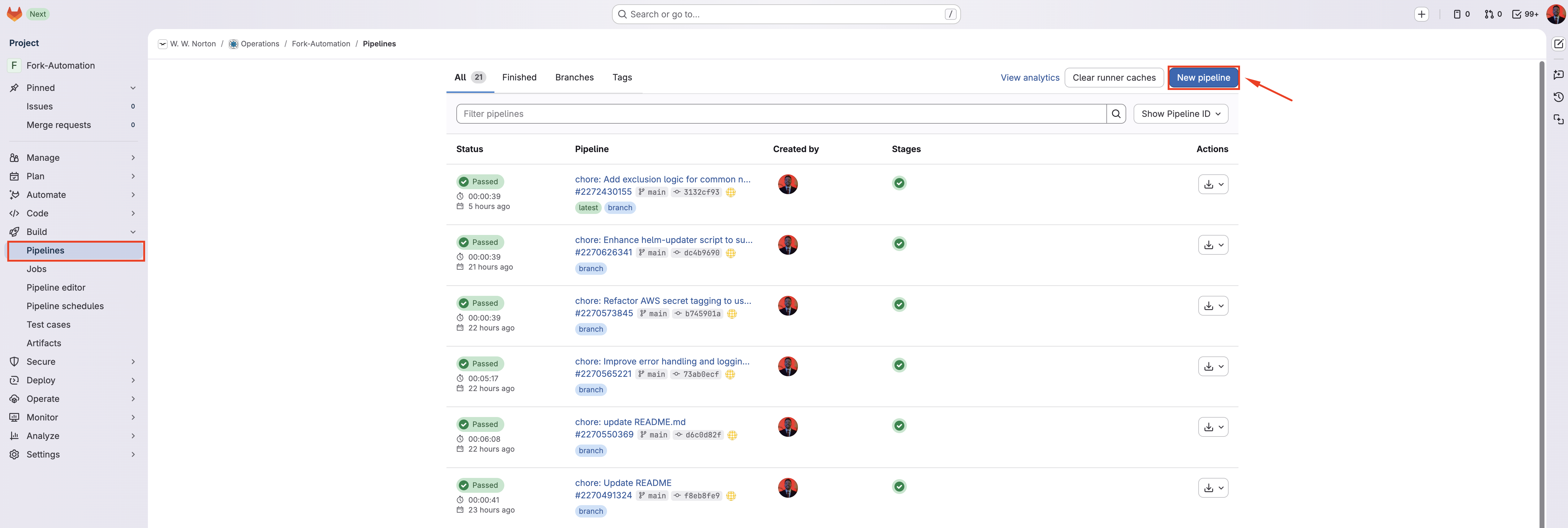
Step 1: Navigate to the Pipeline
- Go to the Fork-Automation repository in GitLab
- In the left sidebar, click Build → Pipelines
- Click the blue Run pipeline button in the top right corner
Step 2: Fill in the Required Inputs
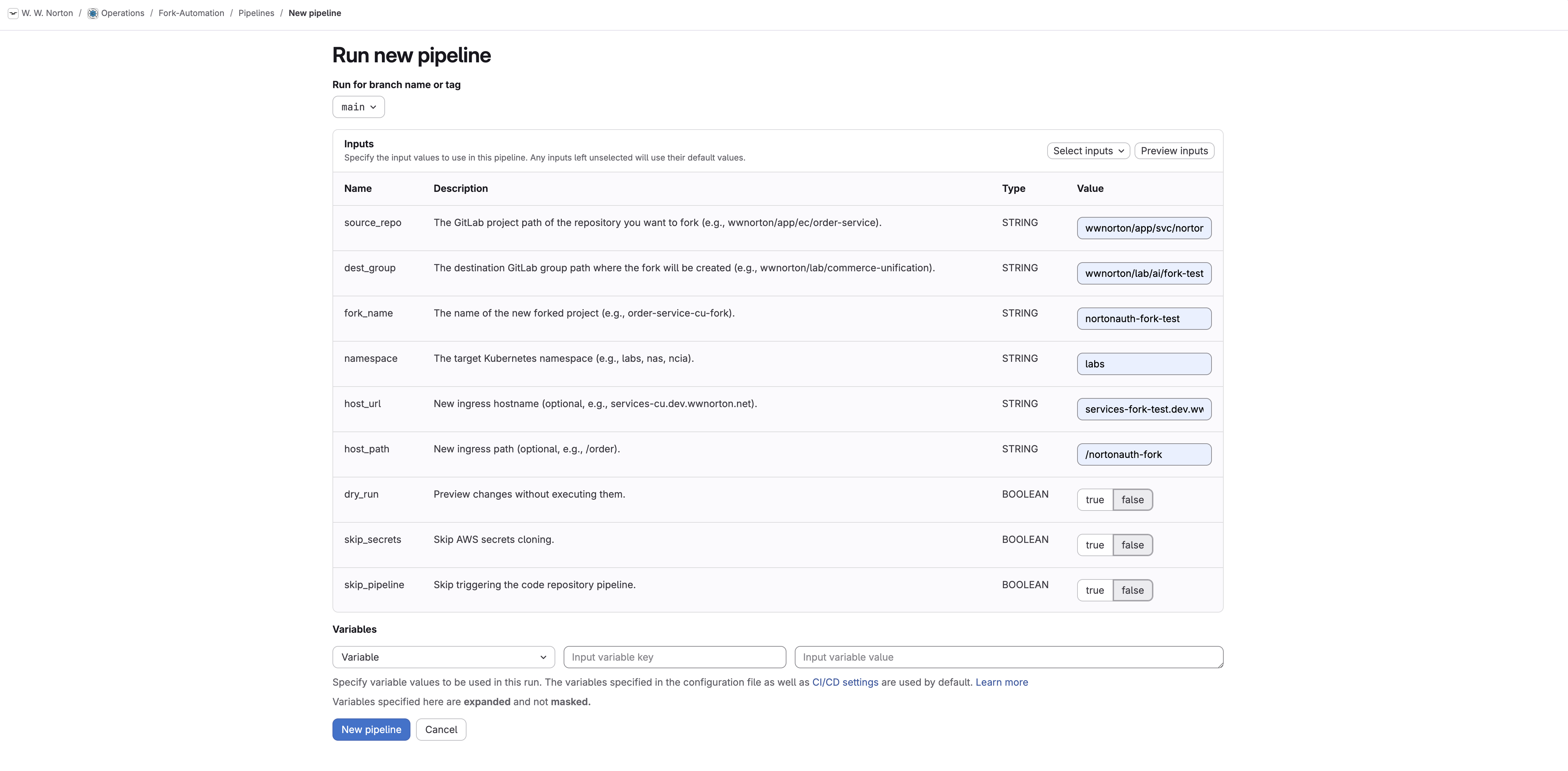
You will see a form with several input fields. Fill them in as follows:
Required Inputs
| Input | Description | Example |
|---|---|---|
source_repo | The full GitLab path of the repository you want to fork. Do not include https://gitlab.com/. | wwnorton/app/ec/order-service |
dest_group | The GitLab group path where the fork will be created. Must already exist. | wwnorton/lab/commerce-unification |
fork_name | The name for your new forked project. Use lowercase with hyphens, no special characters. | order-service-cu-fork |
namespace | The Kubernetes namespace where the application will be deployed. | labs |
Naming Conventions Are Critical: The fork_name must:
- Be lowercase
- Use hyphens (not underscores) as separators
- Not contain special characters
- Be unique within the destination group
Invalid names will cause the pipeline to fail during validation.
Optional Inputs
| Input | Description | Default |
|---|---|---|
host_url | New ingress hostname for the forked application. Leave empty to keep the original configuration. | (empty) |
host_path | New ingress path. Must start with / if provided. | (empty) |
dry_run | Check this box to simulate the run without making any changes. Useful for previewing. | false |
skip_secrets | Check this box to skip AWS secrets cloning. Use if you'll configure secrets manually. | false |
skip_pipeline | Check this box to skip triggering the code repository build pipeline. | false |
Step 3: Run a Dry Run First (Recommended)
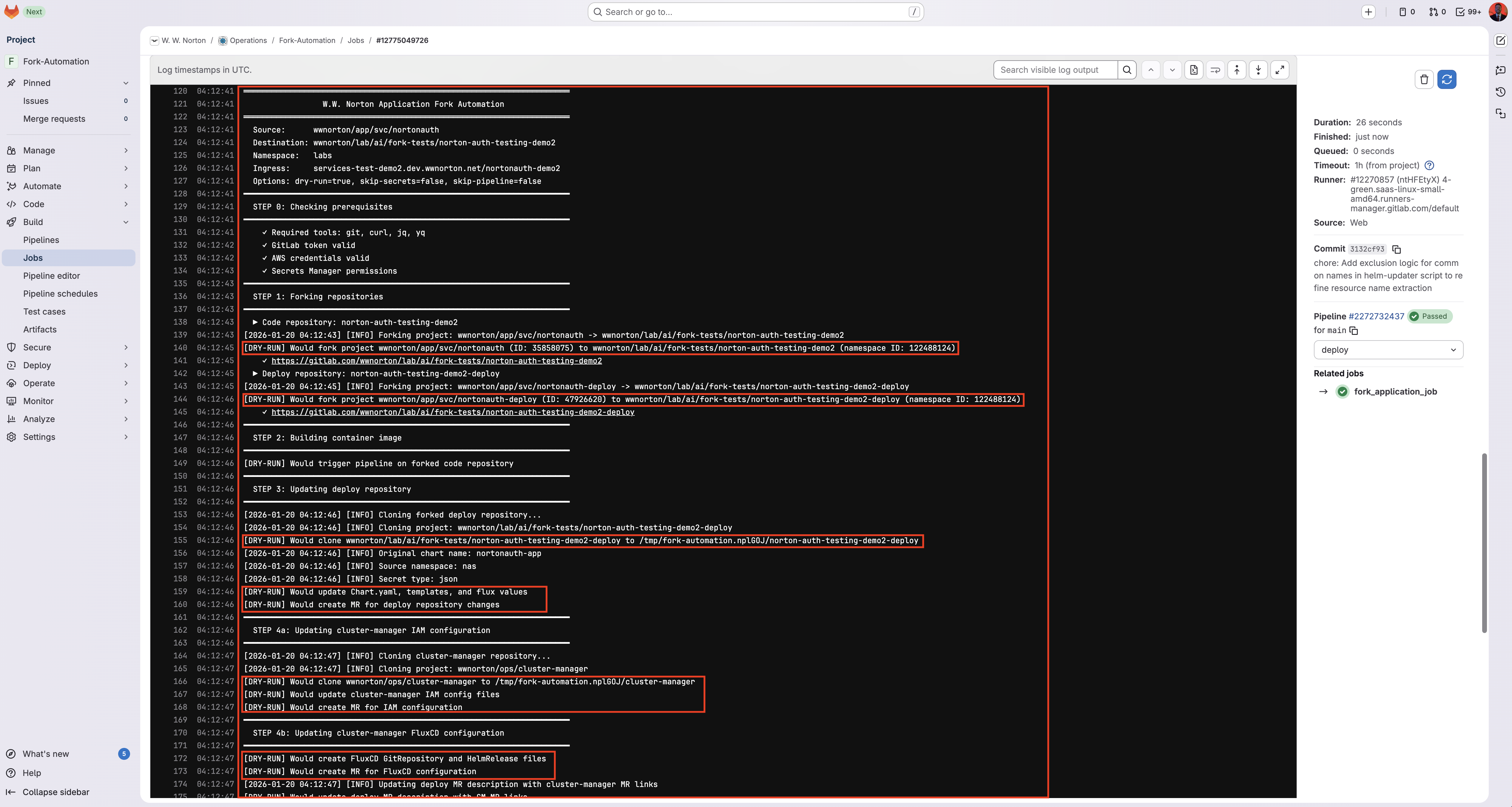
Before executing the full pipeline, run a dry run to preview what will happen:
- Fill in all required inputs
- Check the dry_run checkbox
- Click Run pipeline
- Click the fork_application_job job to see the output
- Review the job output to see what would be created
The dry run will show you:
- Which repositories would be forked
- What Helm chart changes would be made
- Which secrets would be cloned
- Which merge requests would be created
Step 4: Execute the Full Pipeline
Once you've verified the dry run looks correct:
- Click Run pipeline again
- Uncheck the dry_run checkbox and submit the pipeline
- Monitor the job progress in real-time
The pipeline typically takes 10-20 minutes to complete, depending on:
- Fork import time (GitLab processing)
- Code pipeline execution time (container build)
- Size of the deploy repository
Step 5: Review the Output
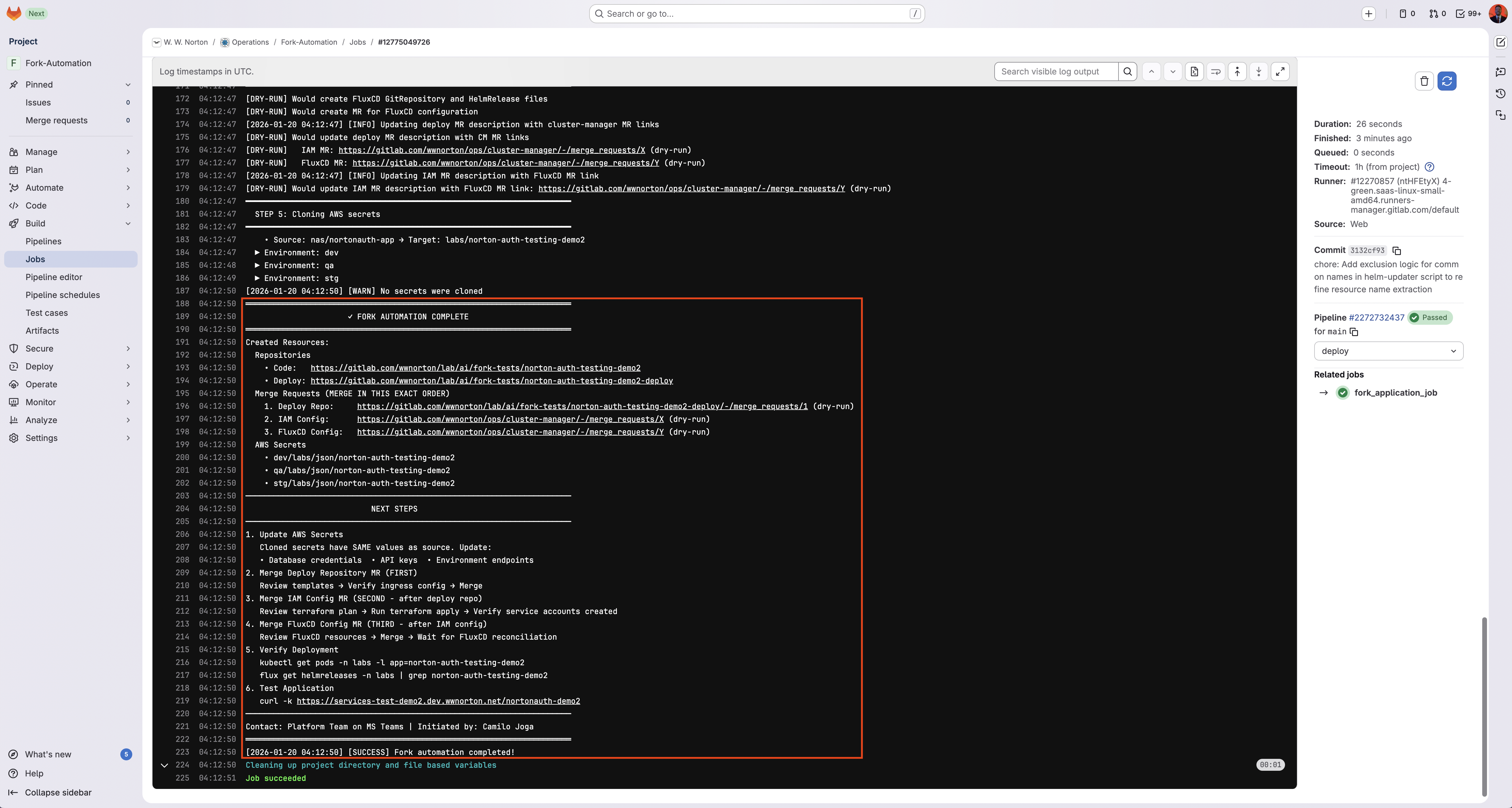
When the pipeline completes successfully, you'll see a summary in the job output containing:
- Repository URLs: Links to the newly created code and deploy repositories
- Merge Request URLs: Three MRs that need to be merged in order
- AWS Secret Paths: The paths where secrets were cloned
Critical Information to Save:
══════════════════════════════════════════════════════════════════════
                      ✓ FORK AUTOMATION COMPLETE
══════════════════════════════════════════════════════════════════════

Created Resources:

  Repositories
    • Code:   https://gitlab.com/wwnorton/lab/commerce-unification/order-service-cu-fork
    • Deploy: https://gitlab.com/wwnorton/lab/commerce-unification/order-service-cu-fork-deploy

  Merge Requests (MERGE IN THIS EXACT ORDER)
    1. Deploy Repo:     https://gitlab.com/.../merge_requests/1
    2. IAM Config:      https://gitlab.com/.../merge_requests/123
    3. FluxCD Config:   https://gitlab.com/.../merge_requests/124

  AWS Secrets
    • dev/labs/json/order-service-cu-fork
    • qa/labs/json/order-service-cu-fork
    • stg/labs/json/order-service-cu-fork
Save these URLs! You'll need them for the post-pipeline steps. The MRs must be merged in the exact order listed.
Platform Team Review (Required for Non-Platform Users)
All three MRs produced by the pipeline require Platform team review and approval before they can be merged. If you are not a member of the Platform team, you must open a review ticket as soon as the pipeline completes — before performing any of the post-pipeline steps below.
Open the review ticket
Create a ticket in the team's intake channel containing:
- The two repository URLs (code repo +
-deployrepo) produced by the pipeline - The three MR URLs in the order they must be merged:
- Deploy Repo MR
- IAM Config MR
- FluxCD Config MR
- The source upstream repo path you forked from
- The destination group and namespace the fork is targeting
- A short request asking the Platform team to review and approve all three MRs
A copy-paste template for the ticket body:
**Fork pipeline output — requesting Platform review and approval**

- Source upstream: `wwnorton/app/<group>/<app>`
- Destination group: `wwnorton/lab/<initiative>`
- Namespace: `<namespace>`

Repositories (created by the pipeline):
- Code:   <code-repo-url>
- Deploy: <deploy-repo-url>

Merge Requests (must be approved + merged in this order):
1. Deploy Repo MR:   <url>
2. IAM Config MR:    <url>
3. FluxCD Config MR: <url>

Please review and approve. I will perform the merges (in the order above)
after each MR is approved.
Why the ticket? The three MRs touch shared infrastructure (Helm chart structure, IAM/Terraform state, FluxCD cluster config). A central review ticket gives the Platform team a single place to coordinate the approvals and ensures none of the MRs are merged out of order.
Do not merge any MR before its Platform team approval is recorded. Even the Deploy Repo MR — which doesn't touch terraform or cluster config directly — must be reviewed: it sets up the Helm chart structure that the later IAM and FluxCD MRs depend on, and chart misconfiguration here propagates to the cluster on merge of the FluxCD MR.
Platform team members running the pipeline for their own work can self-approve and skip the ticket — but the MRs must still go through the formal MR approval flow in GitLab.
Post-Pipeline Steps
After the pipeline completes successfully and (for non-platform users) the Platform review ticket has been opened, follow these steps to finish the deployment. The three MRs must be merged in exact order — merging out of sequence will cause deployment failures. Each merge step assumes the corresponding MR has been approved by the Platform team before you click Merge.
Step 1: Update AWS Secrets
The pipeline clones secrets with their original values. You must update them before deployment to avoid:
- Connecting to the original application's database (risking data corruption)
- Using the same API keys (causing conflicts)
- etc...
To update secrets:
- Log in to AWS Secrets Manager
- Filter secrets by your new path (e.g.,
dev/labs/json/order-service-cu-fork) - Click on each secret and select Retrieve secret value
- Click Edit and update the values
At minimum, update:
- Database connection strings (host, database name, credentials)
- API keys and tokens
- Service-specific endpoints
- Any environment-specific configuration
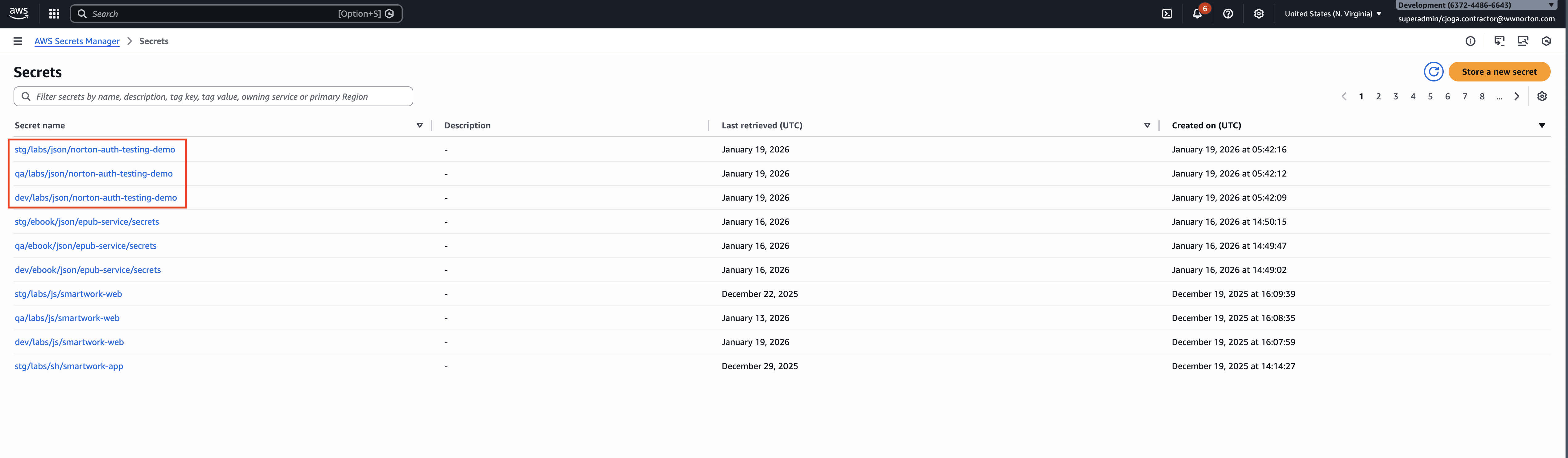
Database Warning: If the original application uses a shared database, the cloned secrets will point to that same database. Always verify and update database credentials before merging the deploy MR to prevent data corruption.
Steps 2-4: Merge the Three MRs in Order
Merge order is critical. The Deploy Repo MR sets up the Helm chart, the IAM Config MR creates the service account and IAM role your app needs to access secrets, and the FluxCD Config MR triggers the actual deployment. Merging FluxCD before IAM will cause pods to fail due to missing permissions.
- Step 2: Deploy Repo MR
- Step 3: IAM Config MR
- Step 4: FluxCD Config MR
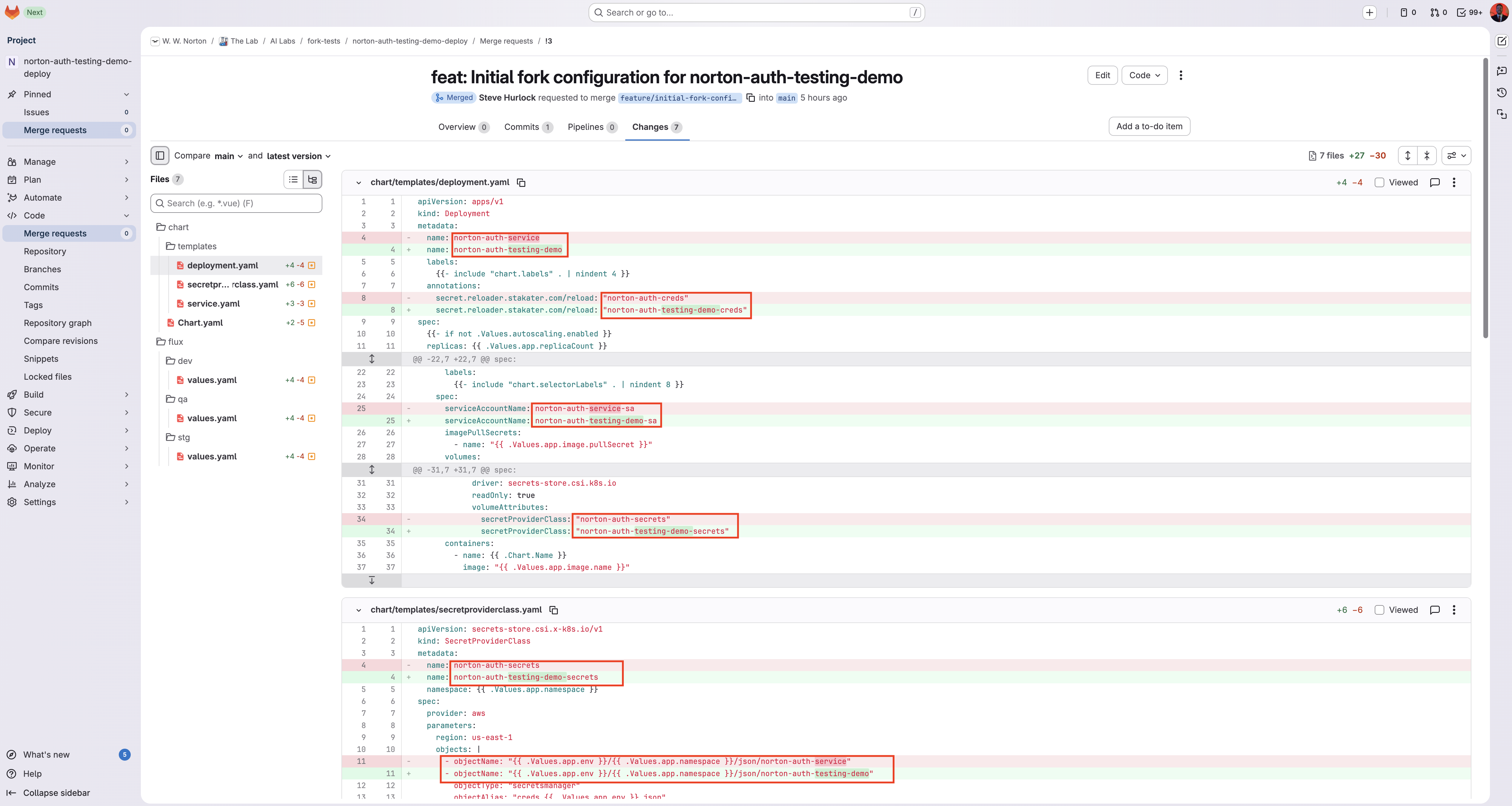
What it does: Contains all the Helm chart updates for your forked application.
- Open the Deploy Repo MR link from the pipeline output
- Review the changes:
chart/Chart.yaml— Name updated to your fork namechart/templates/deployment.yaml— Resource names, service account, annotationschart/templates/service.yaml— Service name and selectorschart/templates/secretproviderclass.yaml— AWS secret pathsflux/*/values.yaml— Namespace, image pull secrets, ingress config
- Verify shared secrets have hardcoded namespaces (if applicable)
- Wait for Platform team approval on the review ticket you opened above
- Once approved, merge the MR
What it does: Adds IAM permissions for your application to access AWS secrets.
- Open the IAM Config MR link from the pipeline output
- Review the changes to
config.{dev,qa,stg}.jsonfiles - Verify your application entry is correct:
{"name": "order-service-cu-fork","type": "json"}
- Request approval from the Platform Team
- Wait for the pipeline to run
terraform plan - Merge the MR
- Wait for the pipeline to run
terraform apply - Verify service accounts were created:
kubectl get sa -n <namespace> | grep <fork-name>
Why before FluxCD? The IAM configuration creates the Kubernetes service account and IAM role that your application needs to access secrets. This must exist before FluxCD tries to deploy the application, otherwise pods will fail to start due to missing permissions.
What it does: Creates the FluxCD resources that deploy your application to the cluster.
- Open the FluxCD Config MR link from the pipeline output
- Review the GitRepository and HelmRelease resources
- Wait for Platform team approval on the review ticket you opened above
- Only merge after the IAM Config pipeline has completed successfully (the IAM
terraform applymust have finished) - Once both Platform approval and the IAM
terraform applyare in place, merge the MR - FluxCD will automatically reconcile and deploy your application
Step 5: Verify the Deployment
After FluxCD reconciles (typically within 5-10 minutes):
-
Check pod status:
kubectl get pods -n <namespace> -l app.kubernetes.io/name=<fork-name> -
Check FluxCD status:
flux get helmreleases -n <namespace> | grep <fork-name> -
Verify secrets are mounted:
kubectl exec -n <namespace> deploy/<fork-name> -- ls -la /mnt/creds/ -
Test the application:
curl -k https://<host-url><host-path>/healthcheck

Configuration Details
How secretRef and imagePullSecrets Are Determined
The pipeline automatically selects the correct credentials based on your destination group:
| Destination Group | Flux secretRef | imagePullSecret |
|---|---|---|
wwnorton/app/* | flux-git-auth | image-pull-secret |
wwnorton/lab/* | flux-git-auth-lab | image-pull-secret-lab |
wwnorton/media/* | flux-git-auth-media | image-pull-secret-media |
This mapping is handled automatically—you don't need to configure it manually.
What Gets Updated in the Deploy Repository
The pipeline updates the following files with your new application name and configuration:
| File | Changes Made |
|---|---|
chart/Chart.yaml | name field updated to fork name |
chart/templates/deployment.yaml | Resource name, serviceAccountName, SPC reference, annotations |
chart/templates/service.yaml | Service name, labels, selectors |
chart/templates/secretproviderclass.yaml | Name, objectName paths, secretName |
flux/dev/values.yaml | Namespace, imagePullSecret, ingress host/path (if provided) |
flux/qa/values.yaml | Same as dev |
flux/stg/values.yaml | Same as dev |
Shared Secrets Handling
Some applications reference shared secrets (e.g., JWT signing keys, CA certificates) that exist in a different namespace. The pipeline:
- Detects shared secret references in the SecretProviderClass
- Hardcodes the original namespace for these references
- Preserves the ability to access these shared resources
This prevents shared secrets from breaking when the application moves to a new namespace.
Troubleshooting
Pipeline Fails During Fork
Symptoms:
- Error message: "Failed to fork code repository" or "Failed to fork deploy repository"
- Pipeline exits at step 1
Possible Causes:
- Source repository doesn't exist or you don't have access
- Destination group doesn't exist
- A project with the fork name already exists in the destination group
- GitLab token lacks required permissions
Resolution:
- Verify the source repository path is correct (no typos, correct case)
- Confirm the destination group exists and you have Developer+ access
- Check if a repository with your fork name already exists
- Contact Platform Team if token permissions are suspected
Pipeline Fails During Deploy Repository Update
Symptoms:
- Error message: "Could not determine original chart name"
- Pipeline exits at step 3
Possible Causes:
- Source deploy repository doesn't follow expected structure
- Missing
Chart.yamlin the chart directory - Unusual naming conventions in templates
Resolution:
- Verify the source deploy repository has a standard Helm chart structure
- Check that
chart/Chart.yamlexists and has anamefield - If the source uses non-standard patterns, contact Platform Team for assistance
Pods Fail to Start After Merging All MRs
Symptoms:
- Pods in
CrashLoopBackOfforErrorstatus - Secret mounting errors in pod logs
Possible Causes:
- IAM Config MR pipeline hasn't completed
- Service account doesn't have correct IAM role annotation
- AWS secrets don't exist at expected paths
Resolution:
- Verify the IAM Config pipeline completed successfully (check for terraform apply)
- Check service account annotation:
kubectl get sa <fork-name>-sa -n <namespace> -o yaml | grep eks.amazonaws.com
- Verify secrets exist in AWS Secrets Manager at the expected paths
- Check pod events for specific error messages:
kubectl describe pod <pod-name> -n <namespace>
MRs Show Conflicts
Symptoms:
- Merge request cannot be merged due to conflicts
- Pipeline creates MR but shows conflict warnings
Possible Causes:
- Running the pipeline multiple times for the same fork
- Manual changes were made to the target branch
- Concurrent forks to the same destination
Resolution:
- If re-running after a partial failure, the pipeline is idempotent—it will detect existing MRs and skip recreation
- If conflicts exist, resolve them manually in the MR
- For cluster-manager conflicts, coordinate with Platform Team
AWS Credentials Invalid
Symptoms:
- Error message: "AWS credentials invalid" during prerequisites check
- Pipeline fails before any fork operations
Possible Causes:
- Pipeline CI/CD variables not configured
- AWS credentials have expired
- Insufficient Secrets Manager permissions
Resolution:
- This is a pipeline configuration issue—contact Platform Team
- If running locally, ensure
aws sso loginhas been run recently - Verify the AWS profile has
secretsmanager:GetSecretValueandsecretsmanager:CreateSecretpermissions
Running the Script Locally (Advanced)
Expand for local execution instructions — for testing or debugging purposes only
Quick Reference
Merge Order Checklist
## Fork Deployment Checklist: [fork-name]

### Pre-Deployment

- [ ] Pipeline completed successfully
- [ ] Saved all MR URLs from pipeline output
- [ ] AWS secrets updated with new values
- [ ] Database credentials point to correct database

### Merge Order

1. [ ] Deploy Repo MR merged
2. [ ] IAM Config MR merged → terraform apply completed
3. [ ] FluxCD Config MR merged

### Verification

- [ ] Pods running: `kubectl get pods -n <namespace> -l app.kubernetes.io/name=<fork-name>`
- [ ] FluxCD healthy: `flux get helmreleases -n <namespace>`
- [ ] Secrets mounted: `kubectl exec ... -- ls /mnt/creds/`
- [ ] Health check passing: `curl https://<host>/healthcheck`
Common Commands
# Check pod status
kubectl get pods -n <namespace> -l app.kubernetes.io/name=<fork-name>

# Check FluxCD reconciliation
flux get helmreleases -n <namespace> | grep <fork-name>

# View pod logs
kubectl logs -n <namespace> -l app.kubernetes.io/name=<fork-name> --tail=100

# Check service account
kubectl get sa <fork-name>-sa -n <namespace> -o yaml

# View secret in AWS
aws secretsmanager get-secret-value \
  --secret-id "dev/<namespace>/json/<fork-name>" \
  --query SecretString --output text | jq .

# Force FluxCD reconciliation
flux reconcile helmrelease <fork-name> -n <namespace>
FAQ
Implementation Questions
Q: Is it possible for the fork process to timeout or fail?
Yes. The pipeline relies on GitLab's API and CI runners. If GitLab is experiencing high load or the source repository is exceptionally large, the process might hit a timeout.
- Fork Import Timeout: 5 minutes
- Pipeline Timeout: 15 minutes
- Resolution: If a timeout occurs, wait a few minutes and re-run the pipeline. It will detect existing resources and continue from where it left off.
Q: Are there automated rollback processes in case of failure?
No, the pipeline does not automatically delete created resources (repositories, secrets, MRs) upon failure. However, the script is designed to be idempotent.
- Resolution: If a step fails, fix the underlying issue (e.g., permissions, typos) and run the pipeline again with the same inputs. It will skip already-completed steps and update existing resources.
Q: Are there permissions restrictions on who can fork?
The pipeline requires you to have Developer (or higher) access to the Destination Group.
- Forking: The pipeline forks the entire project, effectively copying the default branch (usually
main). It does not restrict which branches can be forked, as forking operates at the project level. - Approval Process: The Merge Requests (MRs) generated by the pipeline serve as the approval mechanism. While the pipeline automates the setup, a human (Platform Team or designated approver) must review and merge the MRs to finalize the deployment. This acts as the gatekeeper for changes to
mainand production environments.
Shared Resources & Configuration
Q: My application uses shared secrets (like TLS certificates). Will they break in the new namespace?
No. The pipeline detects shared secrets (e.g., cert types or secrets named shared-*) and automatically configures your fork to reference them from their original namespace. You don't need to copy them.
Q: How do I change environment variables for my fork?
The pipeline doesn't automatically change your application's environment variables. You should update them in the deploy-repository before merging the Deploy MR. Look for the env section in chart/templates/deployment.yaml or flux/*/values.yaml.
Q: I didn't specify a host_url. How do I access my forked app?
If you left host_url empty, the pipeline preserves the original ingress configuration but updates the host to match the environment standard (e.g., app.dev.wwnorton.net → app.qa.wwnorton.net). Check flux/dev/values.yaml in your new deploy repo to see the configured host.
Maintenance
Q: How do I delete my fork when I'm done?
Deletion is manual. You must:
- Delete the FluxCD resources from
cluster-manager(creates a cleanup PR). - Delete the AWS secrets (schedule deletion).
- Archive/delete the GitLab repositories.
- Verify resources are removed from the cluster (
kubectl get all -n <namespace> -l app=<fork-name>).
Q: How do I keep my fork updated with changes from the original repository?
The fork is a "detached" copy. To pull changes from the original repo, you must add the original repo as a git remote (git remote add upstream ...) and manually merge changes into your fork's branches.
Support
When to Contact Platform Team
- Pipeline failures that aren't covered in troubleshooting
- Source applications with non-standard structures
- Permission issues with GitLab or AWS
- Cluster-manager MR conflicts
- Questions about the merge order or deployment process
How to Get Help
- Check this guide and the troubleshooting section first
- Review the pipeline job logs for specific error messages
- Contact Platform Team via MS Teams with:
- The pipeline job URL
- Your source and destination details
- Any error messages you encountered
- What you've already tried